14 Your own dialog pages
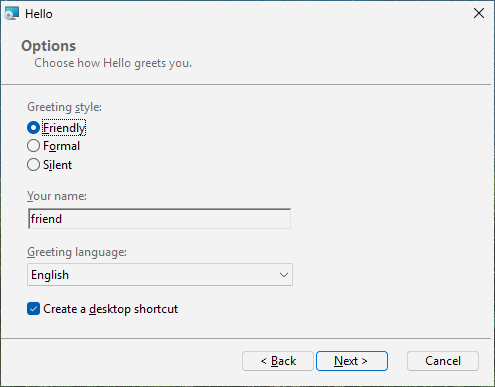
Goal: add a page "Options" after the install folder, where the user picks a greeting style, types a name, chooses a language from a list and decides about the desktop shortcut - and store the answers in the registry.
14.1 The source#
# tutorial 14: hello.toml
format = 1

[package]
name = "Hello"
manufacturer = "Example Software"
version = "$(VERSION)"
arch = "x64"
upgrade-code = "{3F2A6C1D-8B4E-4F7A-9C2D-5E6F7A8B9C0D}"
ui = "installdir"

[define]
VERSION = "1.12.0"

[ui]
languages = ["ko"]

[dialog.Options]
after = "RpInstallDirDlg"
title = "Options"
title-ko = "선택 사항"
description = "Choose how Hello greets you."
description-ko = "Hello 가 인사하는 방식을 고르십시오."

[dialog-control.ModeLabel]
dialog = "Options"
type = "text"
x = 20
y = 55
width = 330
height = 12
text = "Greeting &style:"
text-ko = "인사 방식(&S):"

[dialog-control.Mode]
dialog = "Options"
type = "radio"
x = 20
y = 70
width = 200
height = 42
property = "GREETING_STYLE"
values = ["friendly", "formal", "silent"]
labels = ["&Friendly", "F&ormal", "S&ilent"]
labels-ko = ["친근하게(&F)", "정중하게(&O)", "조용히(&I)"]

[dialog-control.NameLabel]
dialog = "Options"
type = "text"
x = 20
y = 122
width = 330
height = 12
text = "&Your name:"
text-ko = "이름(&Y):"

[dialog-control.Name]
dialog = "Options"
type = "edit"
x = 20
y = 136
width = 200
height = 18
property = "GREETING_NAME"

[dialog-control.LanguageLabel]
dialog = "Options"
type = "text"
x = 20
y = 164
width = 330
height = 12
text = "&Greeting language:"
text-ko = "인사 언어(&G):"

[dialog-control.Language]
dialog = "Options"
type = "combo"
x = 20
y = 178
width = 200
height = 16
property = "GREETING_LANGUAGE"
values = ["en", "ko"]
labels = ["English", "Korean"]
labels-ko = ["영어", "한국어"]

[dialog-control.DesktopBox]
dialog = "Options"
type = "checkbox"
x = 20
y = 204
width = 330
height = 16
property = "DESKTOP_SHORTCUT"
text = "Create a &desktop shortcut"
text-ko = "바탕화면 바로가기 만들기(&D)"

[property.GREETING_STYLE]
value = "friendly"

[property.GREETING_NAME]
value = "friend"

[property.GREETING_LANGUAGE]
value = "en"

[property.DESKTOP_SHORTCUT]
value = "1"

[dir.INSTALLDIR]
path = "$(ProgramFiles)/Hello"

[file.Hello]
dir = "INSTALLDIR"
source = "dist/hello.exe"

[registry.StyleValue]
root = "HKLM"
key = 'SOFTWARE\Example Software\Hello'
name = "Style"
value = "[GREETING_STYLE]"

[registry.NameValue]
root = "HKLM"
key = 'SOFTWARE\Example Software\Hello'
name = "Name"
value = "[GREETING_NAME]"

[registry.LanguageValue]
root = "HKLM"
key = 'SOFTWARE\Example Software\Hello'
name = "Language"
value = "[GREETING_LANGUAGE]"

[shortcut.StartMenu]
dir = "Programs"
name = "Hello"
target = "file:Hello"

[shortcut.Desktop]
dir = "Desktop"
name = "Hello"
target = "file:Hello"
when = "DESKTOP_SHORTCUT"
14.2 A page: [dialog.ID]#
| Key | Meaning |
|---|---|
after | the page it follows: RpWelcomeDlg, RpLicenseDlg (with a license), RpInstallDirDlg (installdir, features), RpCustomizeDlg (features), or another page of yours |
title, description | the heading and the line under it in the banner (default title: the product name) |
title-xx, description-xx | the same in another language of [ui] languages |
The page gets the same banner and Back / Next / Cancel buttons as the built-in ones; you fill its body. Several pages after the same page come in ID order. In minimal the last page's button says Install; in the other sets the "ready" page always comes last. Pages work with minimal, installdir and features.
14.3 Where things go on the page#
Positions and sizes are in dialog units, not pixels: Windows scales them to the font, so a page looks the same at any screen size. Every page is 370 x 270 units:
 x=0                                                         x=370
 +--------------------------------------------------------------+ y=0
 | Title (banner)                                               |
 | Description                                                  |
 +--------------------------------------------------------------+ y=44
 |                                                              | y=45
 |   your controls go here: x from 0 to 370, y from 45 to 234   |
 |                                                              |
 +--------------------------------------------------------------+ y=234
 |                          [ < Back ] [ Next > ]   [ Cancel ]  | y=243
 +--------------------------------------------------------------+ y=270
Tab moves through your controls from top to bottom, then left to right.
14.4 Controls: [dialog-control.ID]#
Every control names its dialog, a type, and x, y, width, height:
type | Shows | Property |
|---|---|---|
text | a label (text) | - |
checkbox | a tick box with a label | set to 1 when ticked, removed when not |
edit | a line to type in | the text typed |
radio | one button per value, one chosen | one of values |
combo | a drop-down list | one of values |
values(1 to 32 strings) are what the property receives;labelswhat the user sees, in the same order (default: the values).labels-xxandtext-xxtranslate them.- A radio group needs about 12 units of height per value.
- In a label,
&marks the Alt key: on atextin front of anedit, Alt+Y jumps to the edit. - Control IDs
Banner,Title,Description,BannerLine,BottomLine,Back,Next,Cancelbelong to the frame; page IDs starting withRpare rubrapack's. At most 64 controls a page.
14.5 Every value needs a default: [property.NAME]#
The dialogs only collect values. A silent installation (/qn) shows no page and uses the properties as they are - so each property a control sets has a [property.*] with its default, and for radio and combo that default must be one of the values. The same properties can be given on the command line:
msiexec /i hello.msi /qn GREETING_STYLE=formal GREETING_NAME=Ada DESKTOP_SHORTCUT=""rubrapack makes the properties of your controls secure by itself, so they reach the elevated part of the installation: [registry.StyleValue] writes [GREETING_STYLE], and the desktop shortcut's when = "DESKTOP_SHORTCUT" sees the tick box.
14.6 Try it#
Install: after the folder page comes "Options" with your controls; Back returns to the folder, Next goes to "ready". With Korean chosen on the language page, the page and the labels are Korean. After installing, regedit shows Style, Name and Language under HKLM\SOFTWARE\Example Software\Hello; the desktop shortcut exists only if the box was ticked.
14.7 What happened inside#
The page is rows of the Control table - the frame's and yours - and its buttons are rows of ControlEvent:
C:\work\hello> rubrapack inspect hello.msi ControlEvent
...
RpInstallDirDlg	Next	NewDialog	Options	1	1
Options	Back	NewDialog	RpInstallDirDlg	1	1
Options	Next	NewDialog	RpReadyDlg	1	1
RpReadyDlg	Back	NewDialog	Options	1	1
...
"When Next on the folder page is pressed, show Options"; Options' Back and Next lead to the neighbours. rubrapack rewires the built-in pages to fit your page in. In Control, the attribute numbers are bit flags again (1 visible, 2 enabled, 65536 transparent, ...).